A setup guide
How to project Bible verses at church: a simple setup guide
To project Bible verses at church, connect your projector to a computer as a second display, open Bible ProJection in a browser on that computer, open the projection window and move it to the projector. Then send any verse to it, with nothing to install.
What you need
A computer with a modern browser such as Chrome, Edge, Firefox or Safari, a projector or a large screen the computer can connect to, and the cable that joins them (usually HDMI). A microphone is optional and only matters if you want AI Mode to suggest verses as the speaker talks. AI Mode needs Chrome or Edge.
Step 1: make the projector a second screen
Connect the projector and open your computer's display settings. Choose the option that extends your desktop to the second display, not the one that mirrors it. Extending is what gives you a private screen for yourself and a separate one for the congregation.
Step 2: open the projection window
Open Bible ProJection and go to the Project tab. Press the Project button in the top bar, and a separate projection window opens. Drag that window onto the projector's screen and make it full screen with your browser's full-screen control.
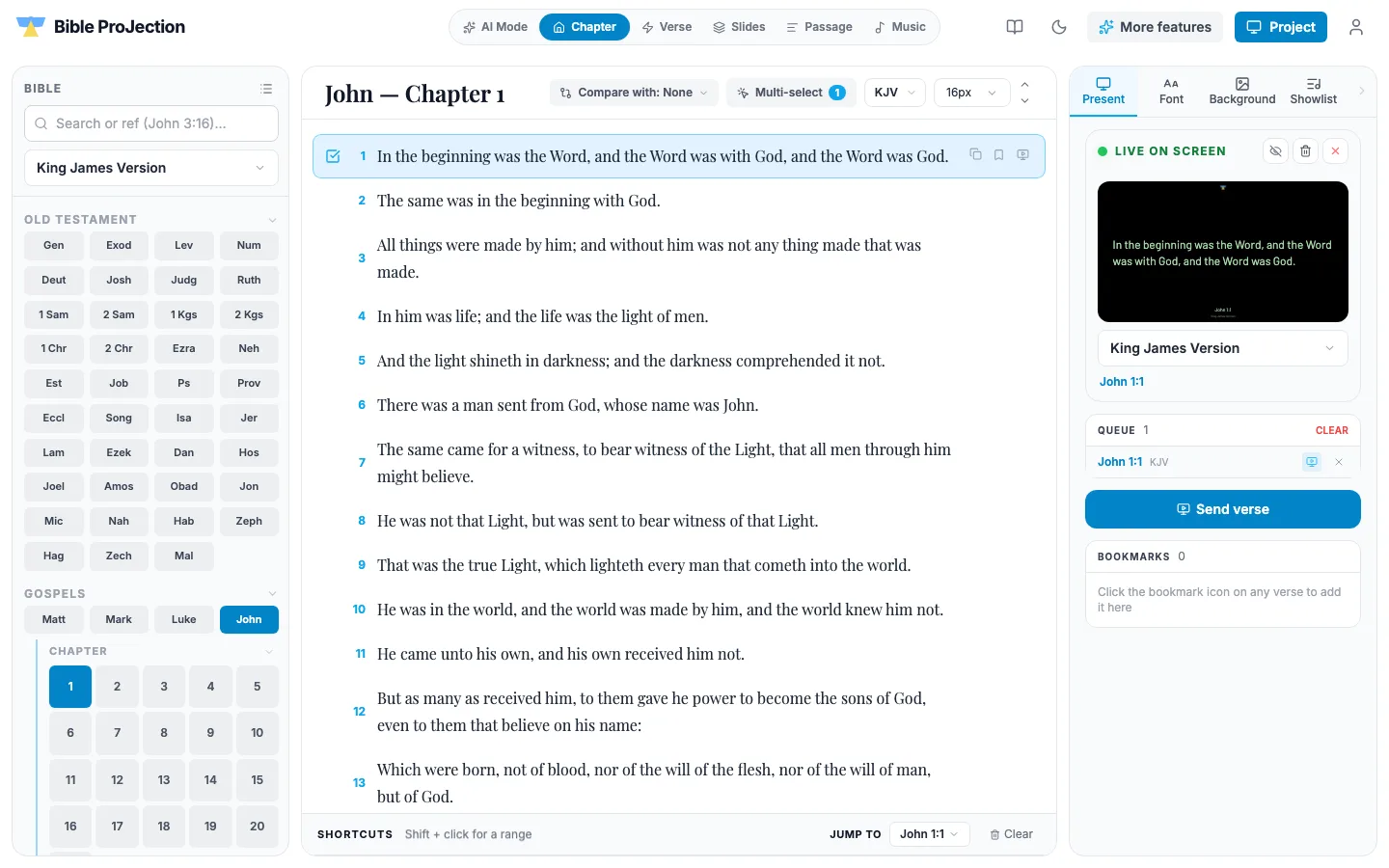
The panel on the right shows Live on screen or Nothing on screen, so you can always see what the room is looking at.
Step 3: send a verse
Use Search to jump to a verse. Type a reference such as John 3:16, Jn 3:16-18 or 1 Cor 13. In Verse view press Send verse to screen, and in Passage view press Send to Screen. If you select several verses, the tray that appears has a button to send them together.
To get ready before the service, add verses to the queue with the plus button. Nothing goes live until you send it.
Step 4: make it readable from the back row
In the Tools panel, the Font tab sets the typeface, size, colour and alignment, and the Background tab sets the slide colour, a background image and an overlay, a logo, a clock and the reference bar. Changes appear on the projection window straight away. Walk to the back of the room during a test and check that the text is easy to read.
If you need to take the verse off, press Esc in the projection window to clear it or B to blank it.
If something goes wrong
If the projector shows nothing, check your computer's display settings first and make sure it sees a second display, then reconnect the cable. If the room sees a blank screen but you expected a verse, look at the Live on screen panel: it says Nothing on screen until you send something, and a blanked screen comes back when you press B again. If the text is too small or too faint, open the Font tab and increase the size or the contrast before the next verse.
A checklist for Sunday
Connect the projector and confirm the computer sees a second display. Open the projection window and send a test verse. Check the text size from the back of the room. Queue the passages you already know you will read. If you will use AI Mode, test the microphone and glance at every suggestion before you send it.
Questions people ask
A computer with a modern browser, a projector or large screen with a cable that connects to it, and Bible ProJection, which runs in the browser. A microphone is optional, for AI Mode.
Extend it. Extending gives the congregation its own screen while you keep a private one for searching and queuing. Mirroring shows the same thing on both.
In the Tools panel, Clear screen removes what is showing. In the projection window, press Esc to clear and B to blank.
Yes. Slides mode also shows song lyrics you paste in and images you upload, and they can be queued and sent like a verse.